
B2B Prospect Generation
The Sales Agent uses an autonomous multi-step pipeline offloaded to Google Cloud: candidate discovery, website verification, contact identification, and personalized outreach copywriting.
Learn how to launch AI-driven B2B searches, monitor background generation in real time, inspect the execution log, review freshly generated leads, and handle troubleshooting resets.
1. Configuring Search Parameters: Target vs. Intent
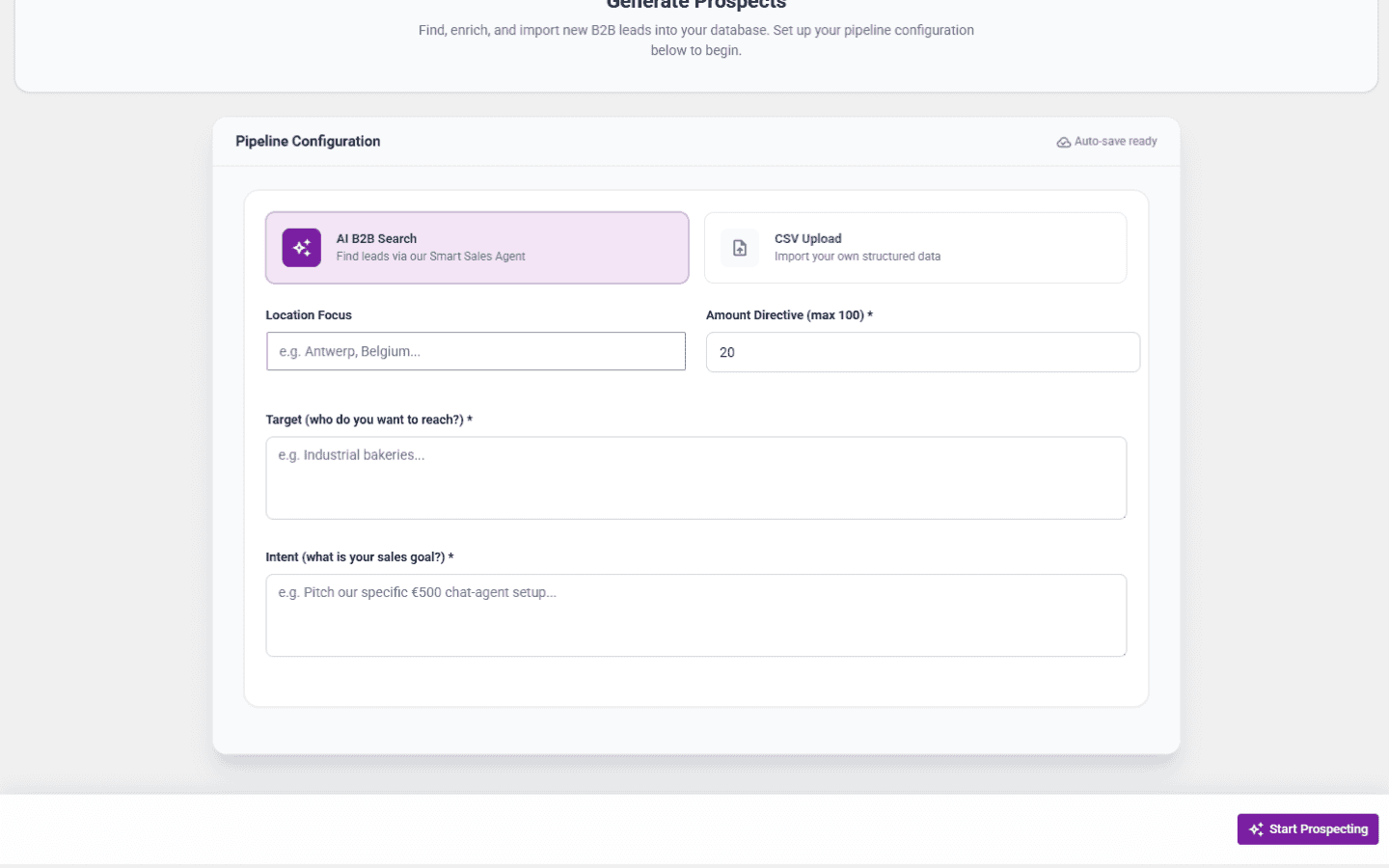
Navigate to Conturalis → Agents → Sales Agent → Generate. Under Pipeline Configuration, ensure AI B2B Search is active and configure your discovery parameters:
- Location Focus: Geographic boundary for the Google discovery sweep (e.g., Antwerp, Belgium or Amsterdam, Netherlands).
- Amount Directive: Target quantity of leads to retrieve and enrich (up to 100 per run).
- Target (Who do you want to reach?): Defines the industry, niche, or audience segment you are looking for (e.g., "Industrial bakeries" or "High-end WooCommerce agencies").
- Intent (What is your sales goal?): Guides the AI brain when generating gap analysis, value propositions, and pitch angles (e.g., "Pitch our €500 custom chat-agent setup to automate customer service").
2. Dispatching & Real-Time Progress Tracking
Click Start Prospecting in the sticky bottom bar. The request is dispatched to the Cloud Worker, and an active generation state is initialized:
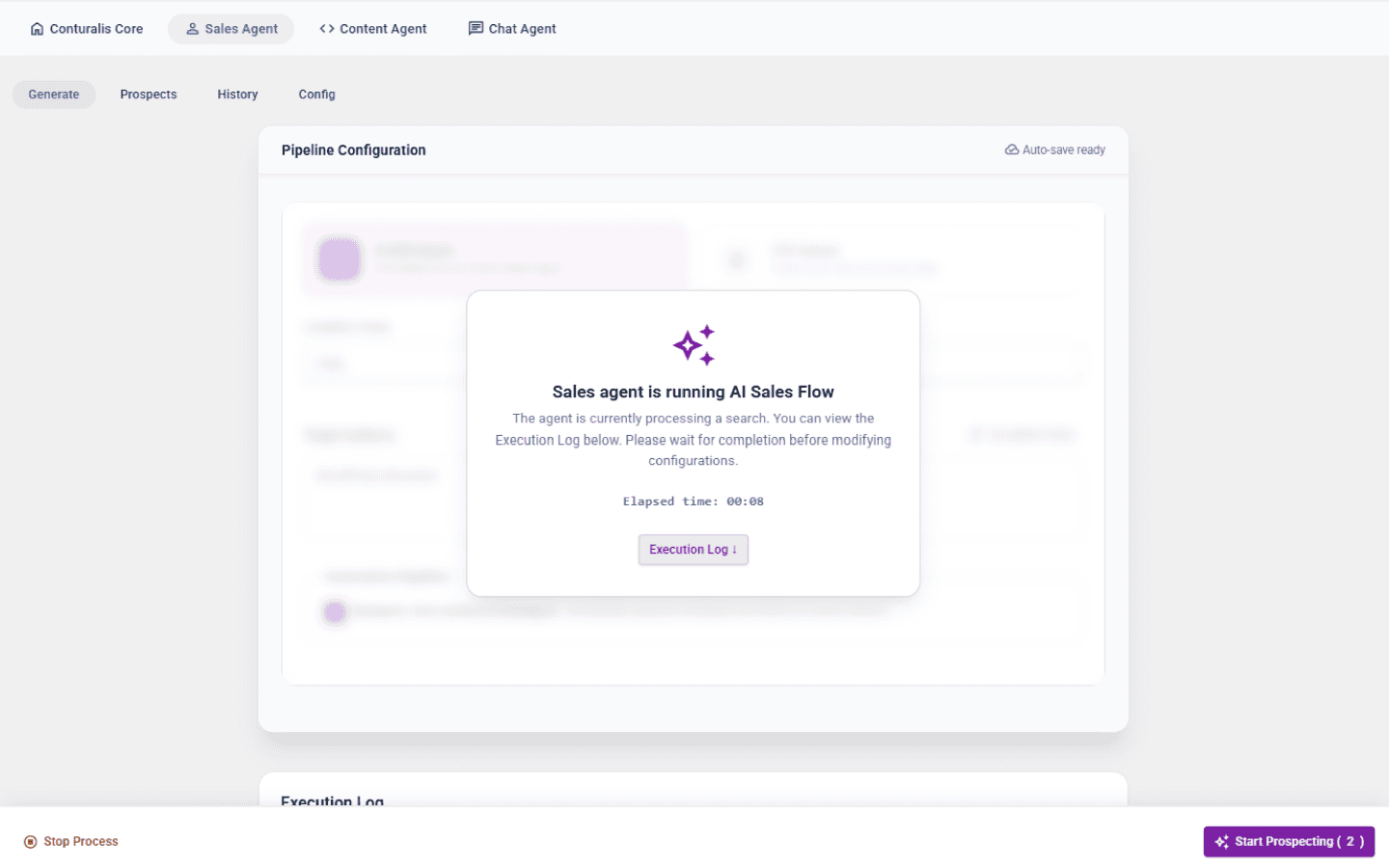
- Global Top Progress Banner: A persistent banner appears across the WordPress administration. Note: This banner state is shared globally across all logged-in administrators; dismissing the banner clears it for every user.
- Generate Tab Scrim & Timer: The configuration card locks into a frosted glass overlay with a live elapsed runtime counter to prevent accidental duplicate submissions.
3. Live Execution Logs
Because deep discovery, scraping, and LLM strategy formulation take several minutes, you can monitor real-time updates directly in the Execution Log card at the bottom of the Generate page:
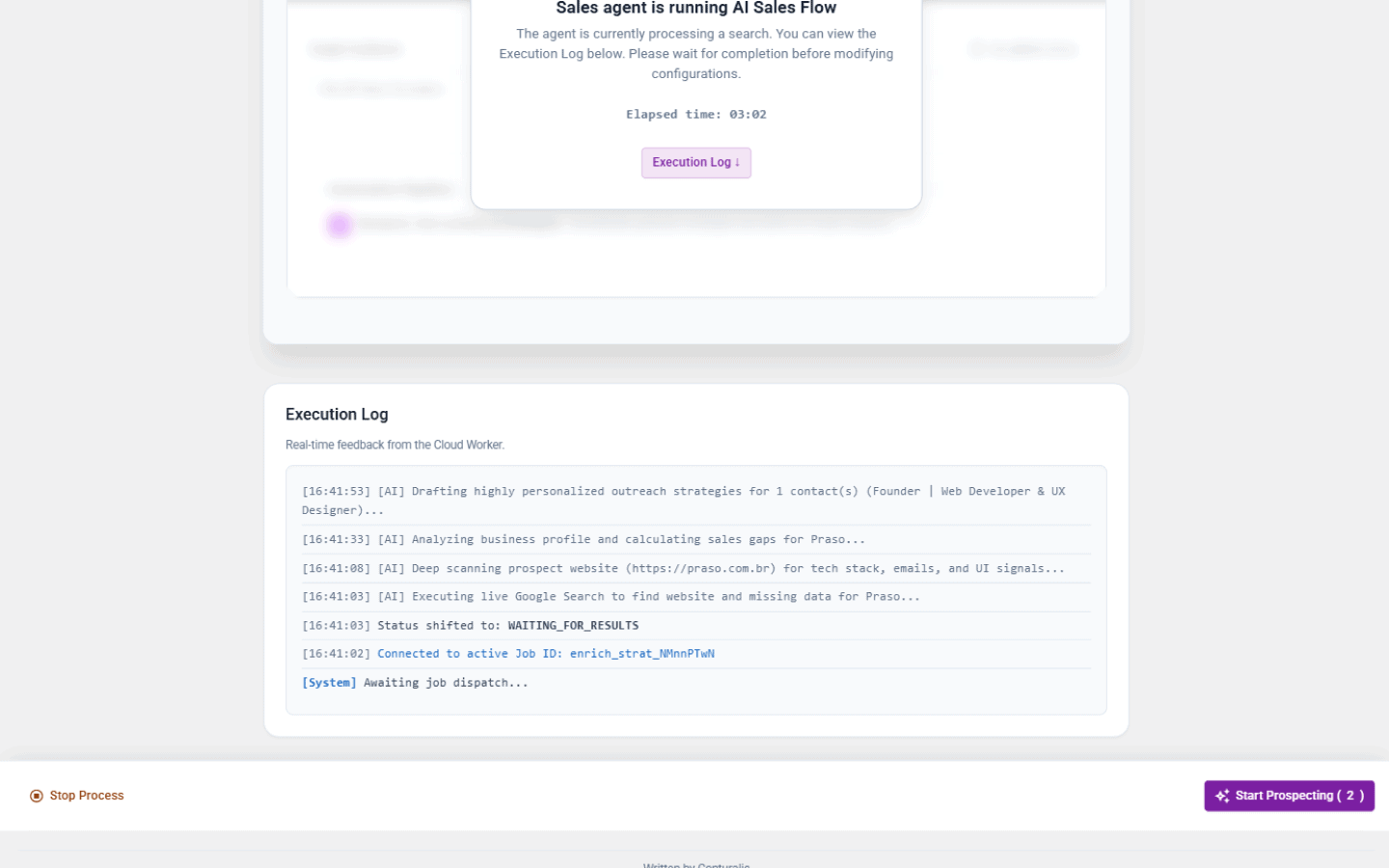
The worker logs each stage as candidates are discovered, sites are crawled, and personalized outreach drafts (call scripts, emails, and LinkedIn messages) are compiled.
4. Completed Generations & 8-Hour NEW Indicators
Once processing finishes, the webhook populates the results into your local cts_crm table:
- Prospects Tab: All newly discovered businesses and decision-makers are listed in the B2B Prospects Database. Freshly imported records display a NEW badge for the first 8 hours to facilitate fast review.
- History Tab: Review completed search batches, total inserted leads, duplicate counts, and runtime analytics.
5. Troubleshooting: Stalled Agents & Danger Zone Reset
If an external network timeout occurs or the agent appears stuck in the UI, you can manually reset the local tracking state:
- Navigate to Conturalis → Settings → Advanced.
- Scroll down to the Danger Zone section.
- Click the agent reset button to purge active local job locks and restore the interface to idle.
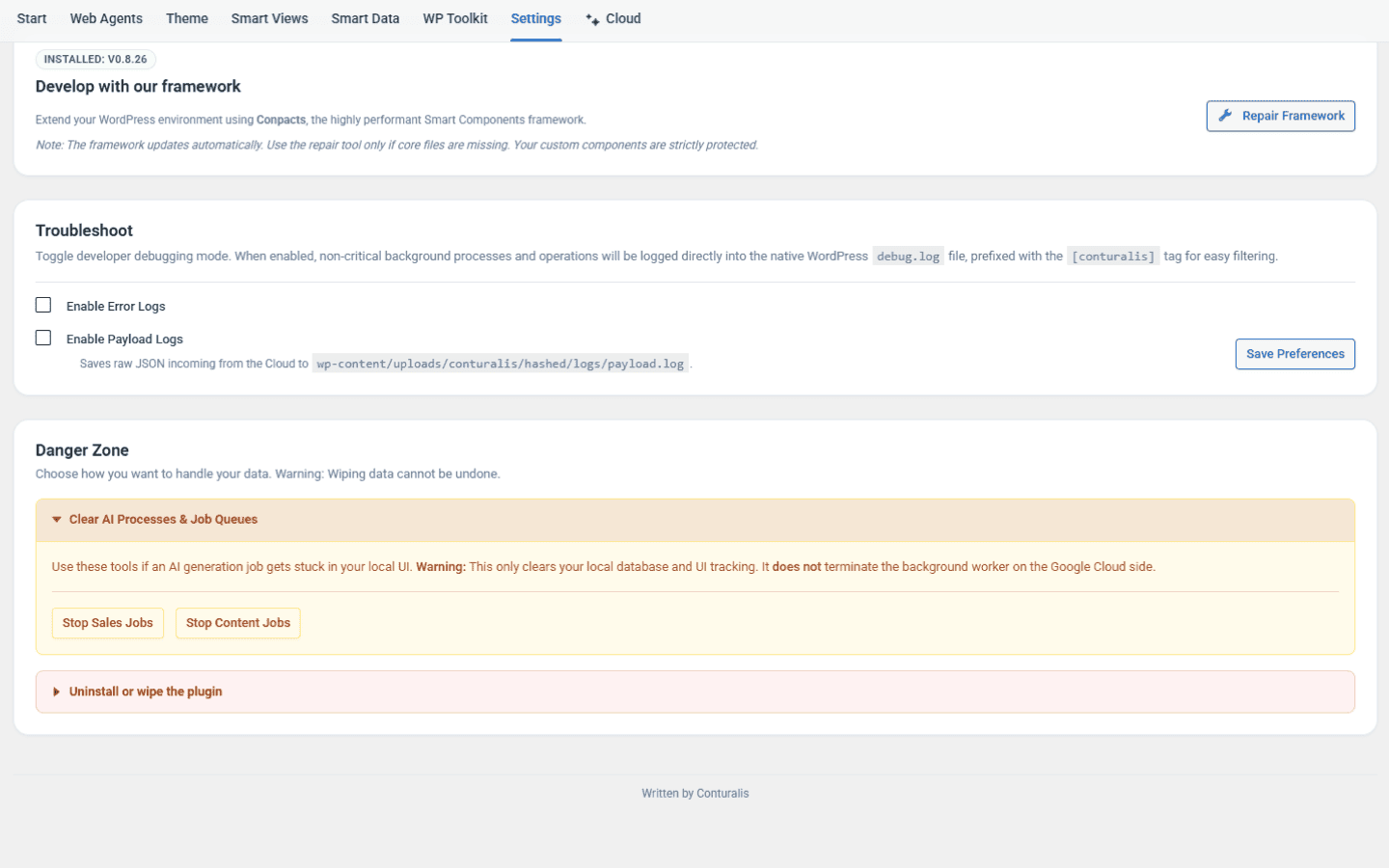
Resetting the UI state in the Danger Zone only clears the local WordPress polling queue; it does not guarantee immediate termination of background tasks already queued on Google Cloud. Do not re-trigger the same search criteria within 12 hours of a force reset to avoid duplicate API calls and credit usage.